Showing posts with label windows guide. Show all posts

Mocrosoft Windows DirectX Graphics Secret Guide

Windows guide about DirectX Secret of graphics in windows OS.


Microsoft took long time to introduce windows vista and everyone waiting for windows 10 for its excellent graphics features. But do you know why such excellent graphics in windows 10, 8 and vista. It is due to DirectX 10.

What is DirectX in Win operating system?


DirectX is the main core things which make the games work. All the graphics designs are because of it. When Microsoft launched first graphic base operating system windows 95. It has so many limitation due to restriction on hardware like audio device and video. Thus directx made API or functions which can be used in windows operating system.

How DirectX10 makes graphics so real?


1. In reality every point is unique.
2. Points on your face is not similar. DirectX started because of restriction on number of unique objects that can show in Scene. But with DirectX you can show 100s of unique objects. This means, if you want to show 100 flowers then you need not to create one and copy it to 100 places, but create 100 different flowers. That makes it more real.
2. Most of the hi-fi graphics video games look so real as Directx using technique called as geometry shaders. It adds more “triangles” in a particular point, it makes them real.


High graphics make CPU slow and system crash?

If you have separate graphics card with high memory then this is absolutely fine. As Directx will transfer the load on to the graphics card and CPU can handle other systems operations.CPU full form is Central Processing Unit.


So before upgrading to windows vista, you must check the hardware configuration of windows system. I guess this Windows Guides will help you.

Windows Shutdown / Restart Shortcut Keys

How to Create Windows Shutdown Shortcut Keys and Windows Restart Shortcut Keys Guide.


This site's each post have different Windows guide and update regularly. here are the steps for creating Windows shutdown and restart button in windows. You can use this guide to create shutdown shortcut keys for Windows ,10, and so on. 
Windows has quick power button to put the computer into sleep mode. But most user don’t use sleep mode. So I add this vista tips to convert sleep mode to shutdown button.

Steps to create Windows shutdown shortcut keys.


1) Press Windows + R to access RUN command prompt.
2) Type powercfg.cpl ,1.
3) This load power options menu.
 Create Windows Shutdown Shortcut

4) Once power option loads, find the “Power Buttons and Lid" > Start Menu Power Button tree”. Now right click on setting and select the action as shown in the below picture. Click OK once you have selected SHUTDOWN key.

Create Windows Restart Shortcut

5) View your start menu of windows computer. Icon has change to power off button.
Windows guide for Power Button Shortcut 

Steps to create windows restart shortcut.

1) Follow above 1 to 4 steps, Now instead of shutdown select restart key. You can create windows restart shortcut.

Windows Vista vs XP Comparision

Windows Vista vs XP Features Comparison.

Advantage of Windows over XP.

There are plenty of reasons to leave Windows XP and install Windows Vista and below are my top 15 favorites reasons to switch to windows vista.  

1. It’s the Interface, Stupid.

Perhaps the best thing about Windows Vista is the most obvious: its new interface.  

2. Flip Over Windows Flip 3D. 

Switching between open windows using Alt-Tab in previous versions of Windows was always a shot in the dark, as you never quite knew to which window you’d switch, or even which ones were open.  

3. Live Thumbnails.

Do you run a lot of programs and visit a lot of Web sites simultaneously? If so, you’ll appreciate Live Thumbnails. Hover your mouse over any window on the Taskbar, and a thumbnail of the window pops up, with the program and document name, or the Web site name, just above it. Now this one is really awesome point to be considered.

4. Boost Performance.

With ReadyBoost Windows Vista includes a quick way to enhance system performance: ReadyBoost. It preloads files and programs you often use into RAM so that they’re there when you want them, and you don’t have to wait for them to load from the hard disk. You can buy an inexpensive USB flash drive and use up to 4GB of cheap RAM to boost your system performance.  

5. Cool Performance Tools.

 If you’re the kind of person who tends to peek under the hood and tinker, you’ll find a lot to like in Windows Vista, which contains plenty of applets and utilities.  

6. Better Security.

At every level of Windows Vista, you’ll find improved security. The firewall is now two-way, including inbound as well as outbound protection.  

7. Find Anything Fast With Search.

Can’t remember where you put an important file? It’s no longer a problem. Windows Vista integrates a new search technology throughout the operating system–on the Start menu, within Windows Explorer, and just about everywhere else you look.  

8. Nifty Software Gadgets.

If you’re a software gadget fan, you’ll love Windows Vista.  

9. Better Wireless Networking.

Anyone who uses a wireless network at home, at work, or on the road will appreciate the way Windows Vista handles wireless networking.  

10. Map Your Network  

Want to see every single computer and device connected to your network–and get instant information about each, such as their IP addresses?  

11. Better Graphics With Windows Photo Gallery.

12. Become a Director With Windows Movie Maker.

 Windows Vista comes with a new version of the much-maligned movie making tool Windows Movie Maker, and it’s a big surprise–you’ll actually want to use it.  

13. Better Notebook Support.

In previous versions of Windows, the mobile-computing features seemed bolted on after the fact.  

14. File Sharing and Syncing.

With Windows XP it was possible to share files among PCs on your network–possible but often impossibly hard, it seemed.  

15. Protect Your Kids With Parental Controls.

 Worried that your children may be exposed to inappropriate content online? Want to make sure they’re not playing violent games? Parental Controls put you in the driver seat. Not only can you determine the kinds of sites they visit and games they play, but you can also enforce rules about when they’ll be able to use the computer at all. 

Create Windows Shutdown / Restart Shortcut Button

Windows guide to create shutdown and restart button Icon

 Here is Windows guide for creating shortcut for shutdown and restart your windows computer. In windows, you need few click to restart or turn off computer. Here is Windows guide to create shortcuts for shutdown restart. Below windows tutorial for shutdown shortcut will work on all windows OS including windows 11,10,8 and vista. It will not work on Unix, Linux and Macintosh. You can shutdown windows computer with single click.

Steps to create windows shutdown shortcut icon.

1) Right click on desktop and select short cut as shown in photo.

 Create windows shutdown shortcut 

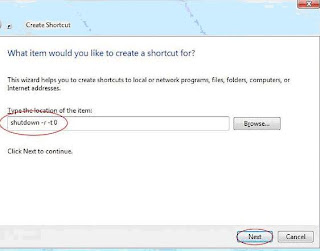
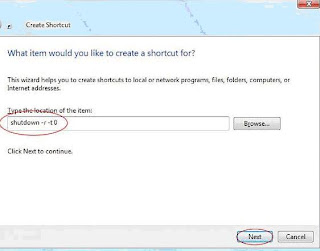
 2) Now type in "shutdown -r -t 0" at shortcut path and click NEXT:

 Guide create windows shutdown shortcut 

3) Give the icon name “Windows Shutdown icon” and click Finish: 

Create Windows Restart shortcut 

4) Now you have Windows shutdown icon on your desktop.

Shutdown PC with single click 

How to create windows restart shortcut icon.

 To create shortcut for windows restart type, type this "shutdown -s -t 0" for short cut. hope you understand this windows guide for creating shortcuts for restart and windows shutdown.